Bye Reminder - Sign Out Pop Up Reminder
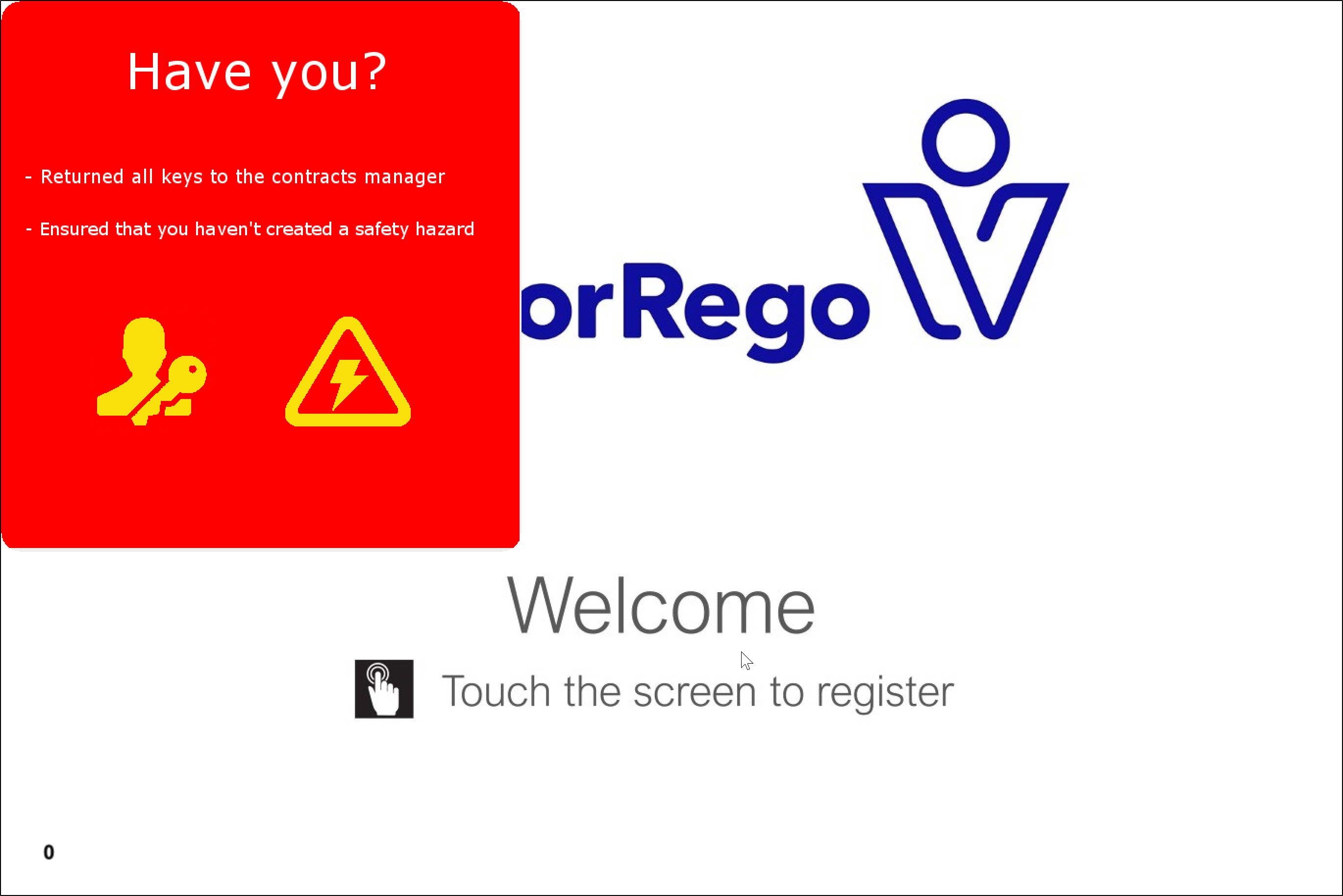
VisitorRego’s Bye Reminder feature displays a pop-up image when someone signs out. The image can contain any message you choose, for example a prompt to return valuables such as keys, access cards, PPE, or other site-issued items before leaving. This article explains how to enable the Bye Reminder and how to select the image you want to use.
Enabling the Bye Reminder
2. Scroll down until you find the Bye Reminder option, then tick the checkbox to enable the function.
3. Select the Bye Reminder Image field. A button with three dots (...) will appear on the right.
4. Select the button with three dots (...) to open the file browser, navigate to the location of the image you want to use for the reminder, and choose the file.
5. Select Open to confirm your selection.

The Bye Reminder image can display any message your site requires. It is most commonly used to remind people to return valuables or other site-issued items, or to complete any required tasks before leaving site. You can customise the image to include any wording or visual prompt that suits your needs.
Accepted image formats are .jpg and .png.
The recommended image size is 529 × 558 pixels.
The displayed message must be included within the image itself. Text cannot be typed or edited separately in VisitorRego’s settings.
Contact VisitorRego Support if you would like us to create or update a custom Bye Reminder image for your system.
Accepted image formats are .jpg and .png.
The recommended image size is 529 × 558 pixels.
The displayed message must be included within the image itself. Text cannot be typed or edited separately in VisitorRego’s settings.
Contact VisitorRego Support if you would like us to create or update a custom Bye Reminder image for your system.
6. Close the System Setup window to save the changes.
How the Bye Reminder Works
When a person signs out at the VisitorRego unit, the Bye Reminder image will appear automatically in the top-left portion of the screen. The reminder is displayed for approximately two seconds and cannot be extended.
The reminder is shown for all workflow categories, including visitors, contractors, and staff. Its purpose is to provide a quick visual prompt, such as returning valuables, completing tasks, or other site-specific reminders, before the individual leaves the premises.
The reminder is shown for all workflow categories, including visitors, contractors, and staff. Its purpose is to provide a quick visual prompt, such as returning valuables, completing tasks, or other site-specific reminders, before the individual leaves the premises.