Settings - Onboarding and Feature Settings in VR Portal
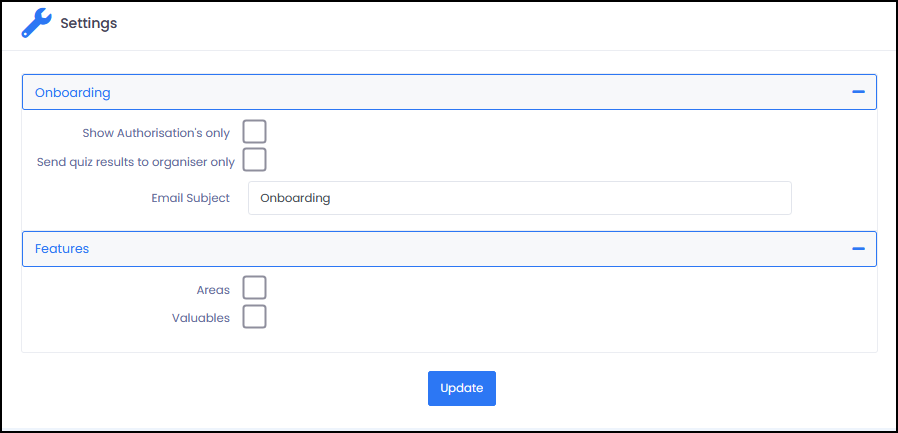
The Settings page in VR Portal provides configurable options that control how the authorisation onboarding process behaves, as well as enabling additional features within your VR Portal site. These settings allow you to tailor how onboarding invitations are presented, how quiz results are distributed, and which functions are available for use within VR Portal.
Access the Settings page
2. Hover over My Site  in the navigation menu on the left.
3. Click on Settings in the My Site menu.

If your VR portal login has access to more than one site you will be able to toggle between sites using the site selector drop-down field.
To switch sites, click on the Sites drop-down field at the top left of the page, then select which site you wish to maintain.
To switch sites, click on the Sites drop-down field at the top left of the page, then select which site you wish to maintain.
Onboarding Settings
The Onboarding section controls how onboarding invitations behave and how authorisation tasks are presented and processed.
Show Authorisation's only
The Show Authorisation's only setting controls what a person sees when they open an onboarding invitation link.
By default, this setting is disabled. When disabled, onboarding links will take the person to the full onboarding portal, which includes a menu with access to sign-in QR codes, health and safety information, site details, and authorisations.
When enabled, onboarding links will take the person directly to the Authorisations page, where they can complete required tasks such as viewing documents, completing questionnaires, or uploading supporting documents.
- This setting only affects new onboarding invitations sent after the setting is changed.
- Existing onboarding links will continue to behave as originally sent.
- The onboarding email content and link will differ depending on whether this setting is enabled.
For full details, refer to the Show Authorisations Only setting for Onboarding Invitations knowledge base article.
- Existing onboarding links will continue to behave as originally sent.
- The onboarding email content and link will differ depending on whether this setting is enabled.
For full details, refer to the Show Authorisations Only setting for Onboarding Invitations knowledge base article.
Send quiz results to organiser only
The Send quiz results to organiser only setting controls who receives quiz submission notification emails.
By default, this setting is disabled. When disabled, quiz results are sent to all Site Admin.
When enabled, quiz results are only sent to the Site Admin who sent the onboarding invitation.
Email Subject
The Email Subject field allows you to customise the subject line of onboarding invitation emails.
By default, this is set to “Onboarding”, but it can be updated to better reflect your organisation or site.
Feature Settings
The Features section allows you to enable or disable additional functions within VR Portal. When a feature is enabled, it becomes available within the portal navigation menu.
Areas
The Areas setting enables the Areas function within VR Portal.
When enabled, the Areas option becomes available in the navigation menu, allowing you to create areas and assign staff to them for selection during sign-in.
For full instructions, refer to the Areas knowledge base article.
Valuables
The Valuables setting enables the valuables (asset) management function within VR Portal.
When enabled, the Valuables option becomes available in the navigation menu, allowing you to manage items issued to and receipted from people onsite.
For full instructions, refer to the Setting Up Valuables and Issuing and Receipting Valuables knowledge base articles.
Saving Changes
After making any changes on the Settings page, click the Update button to apply and save your changes.