Show Authorisations Only setting for Onboarding Invitations
The Show Authorisations Only setting controls what an individual sees when they open an onboarding invitation email link.
When an onboarding invitation is sent, the individual receives an email with a link to complete any required authorisation tasks before being certified to be onsite.
Authorisations may be assigned:
When an onboarding invitation is sent, the individual receives an email with a link to complete any required authorisation tasks before being certified to be onsite.
Authorisations may be assigned:
- By a site administrator, or
- Automatically through processes such as pre-qualification
These authorisations can require the individual to:
- View associated documents
- Complete questionnaires
- Upload supporting documents (such as certificates)
What the Setting Does
The Show Authorisations Only setting determines whether the onboarding link takes the individual directly to their authorisations, or to the full onboarding portal.
To locate the setting:
- Using your web browser, navigate to https://p.visitorrego.com/ and log into VR Portal.
- Hover over My Site in the navigation menu on the left.
- Click Settings in the My Site menu.
On the Settings page, you will see a checkbox labelled Show Authorisations Only.
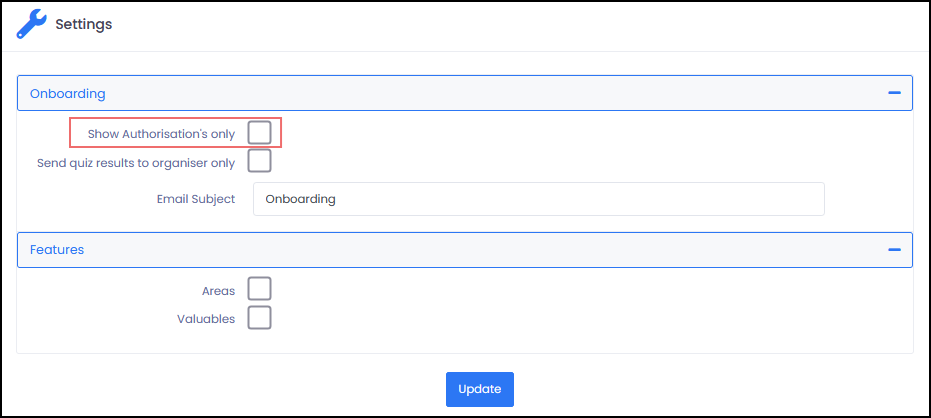
When the Setting is Enabled
When Show Authorisations Only is enabled, onboarding links sent via Send Invite will take the individual directly to the Authorisations page.
On this page, all assigned authorisations are listed. The individual can:
- View documents associated with an authorisation using the PDF button
- Complete questionnaires using the Quiz button
- Upload supporting documents using the Add button, then submit them using Request Certification
This provides a focused experience, where the individual is directed straight to completing required authorisation tasks.
When the Setting is Disabled (Default)
When the setting is disabled, onboarding links will take the individual to the full onboarding portal.
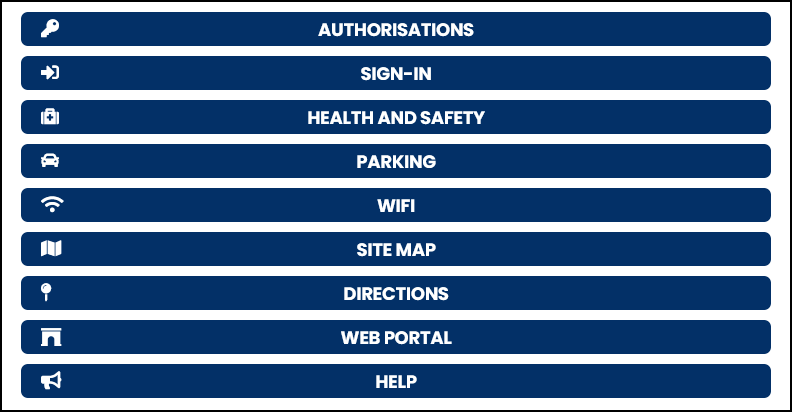
This portal includes a menu with access to:
This portal includes a menu with access to:
- Authorisations – Allows the individual to complete the same authorisation tasks described above
- Sign-In – Displays the individual’s QR code for signing in and out onsite
- Health and Safety – Allows the individual to view and accept site-specific health and safety information
- Parking – Displays site-specific parking information
- WIFI – Displays guest Wi-Fi details
- Site Map – Shows site maps and emergency information such as evacuation plans
- Directions – Provides a map with the site location
- Web Portal – Provides access to their web portal (if applicable)
- Help – Displays contact details for assistance
This provides a broader onboarding experience, giving access to site information as well as authorisation tasks.
Important Notes
- This setting only affects new onboarding invitations sent after the setting is changed
- Existing onboarding links will continue to behave as originally sent
- The setting does not change the authorisations themselves, only how they are presented
- The onboarding email content and link may differ depending on whether this setting is enabled
Choosing the Right Option
- Enable Show Authorisations Only to direct individuals straight to completing required tasks
- Leave it disabled to provide access to the full onboarding portal and additional site information